 Reviews
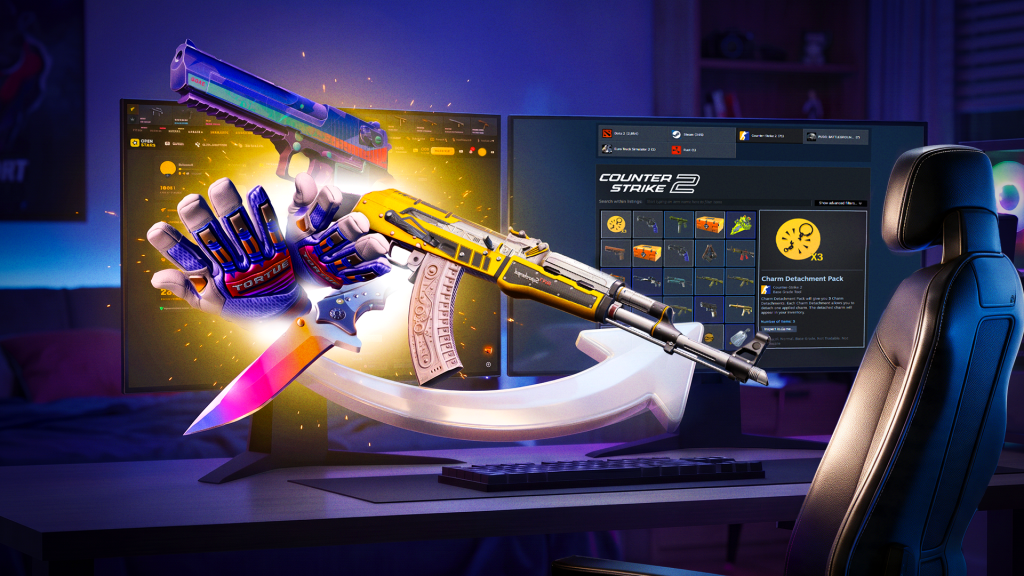
Won something worth keeping? This guide covers everything about how to withdraw CS2 skins from OpenStars to your Steam inventory: the full step-by-step flow, realistic OpenStars withdrawal times, what a trade lock in CS2 actually means, and the fixes for every common error. We wrote it as a practical manual, not a promo — every detail below reflects how the platform and Steam work right now. One thing to know upfront: an OpenStars withdrawal moves skins to your Steam account, and Steam’s own trading rules can affect availability and timing.
OpenStars Guides: How to Withdraw CS2 Skins from OpenStars: Withdrawal Times, Limits, Fees & Trade Locks
Contents
- How CS2 Skin Withdrawals Work on OpenStars
- How to Withdraw CS2 Skins from OpenStars to Steam
- 1. Sign In to Your OpenStars Account
- 2. Check Your Steam Trade URL
- 3. Choose the CS2 Skin You Want to Withdraw
- 4. Confirm the Withdrawal
- 5. Accept the Steam Trade Offer
- OpenStars Withdrawal Times: How Long Does It Take?
- What Is a Trade Lock in CS2?
- What Can Prevent You from Withdrawing CS2 Skins?
- Steam Inventory Is Private
- Steam Guard Restrictions
- Recent Steam Password Change
- Too Many Declined or Cancelled Trade Offers
- Invalid Steam Trade URL
- Skin Is Currently Unavailable
- OpenStars Withdrawal Limits & Fees
- Why Is My OpenStars Withdrawal Pending or Failed?
- How to Withdraw CS2 Skins Safely
- FAQ
How CS2 Skin Withdrawals Work on OpenStars
The system is simpler than it looks. Everything you win from CS2 case opening, battles, or other game modes lands in your OpenStars inventory as items with a cash-equivalent value. New items come from our CS2 Cases catalog, and from there you decide each item’s fate: keep it for more play, sell it back for balance with the sell button, or send it to Steam.
A CS2 skin withdrawal converts an eligible item from your OpenStars inventory into a Steam trade offer sent to your connected account. You accept the offer on Steam, and the skin arrives in your Steam inventory. Only eligible, available items can be withdrawn — if a specific skin is out of stock or locked on your account, the option won’t trigger.
Just as important is what a withdrawal is not. Players asking how to withdraw money from CS2 skins should know the distinction: withdrawing a skin sends the item itself to Steam, and turning it into cash happens later, through a marketplace sale — that’s a separate step from the withdrawal itself. When you withdraw CS2 skins to Steam, you’re moving an item, not cashing out a balance.
How to Withdraw CS2 Skins from OpenStars to Steam
A successful CS2 skin withdrawal takes a few clicks on OpenStars and one confirmation on Steam. One prerequisite before any of it: your Steam account must be trade-eligible, with no CS2 trade lock or restriction active. Here’s how to withdraw CS2 skins step by step, in order.
1. Sign In to Your OpenStars Account
Log in through Steam as usual and make sure you’re on the right account — the skin can only go to the Steam profile linked to your OpenStars profile. If you manage more than one Steam account, double-check which one you signed in with before touching anything else.
2. Check Your Steam Trade URL
A valid Steam Trade URL is what lets our system send you a trade offer at all. If it’s missing or outdated, no offer can arrive. You can find your current URL in Steam under your trade offer settings and paste it into your OpenStars profile settings. An old link from a previous profile or a regenerated token won’t work, so verify it’s current.
3. Choose the CS2 Skin You Want to Withdraw
Open your profile and head to the Inventory section. Your items sit under the All tab with their values listed; hover over the one you want and hit Withdraw to Steam. Withdrawal availability depends on the item being in stock, so check that the option appears before planning around a specific skin.
4. Confirm the Withdrawal
Before you confirm, verify three things: the exact skin and wear, the Steam account receiving it, and that your trade URL is saved correctly. Once confirmed, the withdrawal panel tracks the offer through three stages — Searching, Sending, and Accepting — and you can follow all trade offers from your Steam inventory side too.
5. Accept the Steam Trade Offer
The last action happens on Steam. To withdraw CS2 skins to Steam, open the incoming trade offer, check that it contains exactly the skin you withdrew, and accept it. The panel marks the trade complete once Steam delivers the item, and the skin lands in your Steam inventory with a delivered stamp in your Withdrawal tab. That’s the full answer to how to withdraw CS2 skins — the platform handles the sending, you handle the accepting.
OpenStars Withdrawal Times: How Long Does It Take?
Once you know how to withdraw CS2 skins, the next question is timing. In normal conditions, a CS2 skin withdrawal is quick: the site finds the skin, the bot fires the trade offer, you accept it, done. Every CS2 skin withdrawal runs the same relay — OpenStars sends, Steam delivers, you accept. The withdrawal panel itself notes that sending the offer to Steam may take up to 10 minutes, and completed trades routinely show delivery within a minute of acceptance. When you withdraw CS2 skins to Steam, the offer travels through Steam’s trading system, so Steam’s rules apply on top.
What actually determines the wait:
- OpenStars processing — how fast the system locates and sends your item.
- Skin availability — an out-of-stock skin can’t be sent until it’s sourced.
- Your Steam eligibility — a restricted account can’t receive offers at all.
- Your own confirmation — the offer waits for you on Steam until you accept.
Expect longer waits when Steam-side restrictions apply, when the chosen skin needs sourcing, or when Steam itself is having a slow day. If a trade lock CS2 users get from Steam blocks incoming trades, the offer can’t complete until Steam lifts it — and a CS2 trade lock on a fresh arrival freezes it for another week. If your withdrawal stays pending well past the window shown in the panel, check your Steam notifications first, then reach support through the contact page with your trade details.
What Is a Trade Lock in CS2?
A trade lock in CS2 is a state where an item or an account temporarily can’t be traded. Owning a skin and being allowed to trade it are different things: the item can sit in your inventory, equip and play fine, yet refuse to move anywhere. Steam imposes these locks for security reasons, and they come in a few flavors.
The one every trader knows is the CS2 trade lock on freshly traded items: under Steam’s Trade Protection system, a CS2 item received in a trade stays protected for 7 days — usable in-game, but it can’t be transferred, consumed, or modified until the protection expires. Valve’s announcement introduced it as an anti-scam measure, and it applies to every CS2 trade, including a withdrawal you just accepted.
When people say trade lock CS2, they usually mean that 7-day protection state. A Steam trade lock also hits at the account level: a fresh password reset, a new device, or a young Steam Guard setup can block trading entirely for days. A CS2 skin trade lock on a single item shows a “Tradable After” date in its inventory description instead. Whatever the flavor, a trade lock CS2 imposes always comes from Steam — the platform you withdraw from can’t lift it for you.
Here’s why this matters for withdrawals: OpenStars sends your skin through Steam’s trading system, so Steam’s rules sit on top of ours. A locked account can’t receive the offer, and no platform can bypass a trade lock CS2 players are under — the restriction lives on Steam’s side, and only Steam’s conditions remove it.
What Can Prevent You from Withdrawing CS2 Skins?
Most failed withdrawals trace back to a short list of causes — from a private inventory to a trade lock CS2 users forget they’re under. Run through these before assuming something is broken: a failed CS2 skin withdrawal almost always has a fixable cause.
Steam Inventory Is Private
Trade offers can’t reach an inventory Steam can’t see. If your inventory is set to private or friends-only, the offer fails. Set your inventory to public in Steam’s privacy settings — at least until the trade completes.
Steam Guard Restrictions
Steam Guard has to be active for a while before trading unlocks. Our help documentation notes that trading checks may flag accounts where the Steam Guard Mobile Authenticator hasn’t been active for at least 15 days, and Steam applies similar waiting periods itself — Steam’s Steam Guard page covers the official requirements. A fresh Steam Guard setup works like a trade lock CS2 traders don’t expect — trading stays closed until the waiting period ends. If you just enabled the authenticator, give it time rather than toggling it off and on, because that restarts the clock.
Recent Steam Password Change
Password events temporarily restrict trading. OpenStars currently states that a password change can limit trading for a period, and on Steam’s side a recovery reset blocks trades for 5 days — longer if the account was inactive. If you changed credentials recently, that’s likely your answer to how to withdraw CS2 skins failing right now: wait out the window.
Too Many Declined or Cancelled Trade Offers
Declining offers repeatedly, or cancelling a trade that’s already on hold, can trigger Steam trading restrictions — cancelling a held trade alone carries a 7-day cooldown. Accept only the offer linked to your withdrawal and let the rest expire instead of mass-declining.
Invalid Steam Trade URL
An outdated or mistyped trade URL means the offer never reaches you. Regenerate the URL in Steam if needed, update it in your OpenStars profile, and retry the withdrawal.
Skin Is Currently Unavailable
Availability decides whether a specific item can be sent at all. If the skin you want shows no withdrawal option, it isn’t in a sendable state right now — pick another item or try again later. A CS2 trade lock on your account, or a lock date on the item itself, puts the same wall up from the other side.
OpenStars Withdrawal Limits & Fees
The honest answer on limits and fees: check the withdrawal panel before you confirm, because that’s where any applicable minimum, fee, or account-level limit shows for your specific item. These figures can change as the platform updates, so the current in-app information always takes precedence over anything written elsewhere — including this guide.
We won’t quote fixed numbers we can’t verify today. What we can say: a CS2 skin withdrawal is priced around the item’s listed value, any fee that applies appears before you confirm, and if your account has a limit in effect, the interface tells you rather than failing silently. A trade lock CS2 items carry after arrival also delays any resale plan for a week. For anyone researching how to withdraw money from CS2 skins, remember the order of operations — the withdrawal moves the skin to Steam, and any cash conversion happens afterward on a marketplace, with that marketplace’s own fees.
Why Is My OpenStars Withdrawal Pending or Failed?
If you know how to withdraw CS2 skins already, treat this as the diagnostic pass. Work through this checklist in order — each step rules out one cause.
- Check the withdrawal status in your OpenStars inventory panel.
- Check Steam notifications for the incoming trade offer.
- Confirm your Steam Trade URL is current and saved.
- Confirm your Steam inventory is public.
- Check your Steam Guard status and how long it’s been active.
- Look for a trade lock CS2 or another Steam restriction on your account.
- Confirm the selected skin is still available for withdrawal.
- If everything checks out and it’s still stuck, contact us with the trade details.
A pending CS2 skin withdrawal is usually a waiting offer, not a lost item — the checklist finds the bottleneck in most cases.
How to Withdraw CS2 Skins Safely
Every CS2 skin withdrawal attracts scam attempts, so treat every offer with suspicion by default.
- Verify the Steam account receiving the item before you confirm.
- Check the trade offer contents carefully — the exact skin and wear should match your withdrawal.
- Never share your Steam credentials with anyone, including “support”.
- Watch for fake OpenStars bots: accept only the offer linked to your withdrawal.
- Don’t accept unrelated trade offers that arrive around the same time.
- Use only official OpenStars and Steam pages when sorting out issues.
When you withdraw CS2 skins to Steam, the real offer is the one you triggered yourself — anything unsolicited that shows up next to it doesn’t belong to your withdrawal. Knowing how to withdraw CS2 skins safely matters as much as knowing the buttons, because a CS2 trade lock protects you for 7 days after the trade, but a mistaken acceptance is yours to live with.
FAQ
How do I withdraw CS2 skins from OpenStars?
Sign in, confirm your Steam Trade URL, open your inventory, hit Withdraw to Steam on the item, confirm, and accept the trade offer on Steam. The skin then lands in your Steam inventory.
How long does an OpenStars withdrawal take?
Usually minutes. The panel notes sending the offer to Steam may take up to 10 minutes, and accepting the offer is on you. Steam restrictions or item sourcing can stretch it.
What is a trade lock in CS2?
A state where an item or account can’t be traded temporarily. Freshly traded CS2 items stay Trade Protected for 7 days — playable, but locked from further trades.
How long does a CS2 trade lock last?
The standard Trade Protection window on received items runs 7 days. Account-level restrictions vary: 5 days after a password reset, longer in some cases.
Why can’t I withdraw my CS2 skin?
Usually a private inventory, an outdated trade URL, young Steam Guard, a recent password event, or the skin being unavailable. The checklist above covers each fix.
Can I withdraw OpenStars skins to Steam?
Yes — eligible, available items in your OpenStars inventory can be withdrawn to your linked Steam account through a trade offer you accept on Steam.
Does OpenStars charge withdrawal fees?
Any applicable fee shows in the withdrawal panel before you confirm. Check there for the current figure, since platform details can change over time.
Can I withdraw money from CS2 skins?
If you’re asking how to withdraw money from CS2 skins, the direct answer is: not in one step. A withdrawal sends the skin itself to Steam. To turn it into cash, sell it on a marketplace after withdrawing; that sale happens outside OpenStars, with the marketplace’s own rules and fees.